Accessing News
The News Widget is located on your Course Home page. This widget's primary function is to display course related reminders, announcements, and updates to students. The News tool is located within the Communication link group of the default navigation bar.
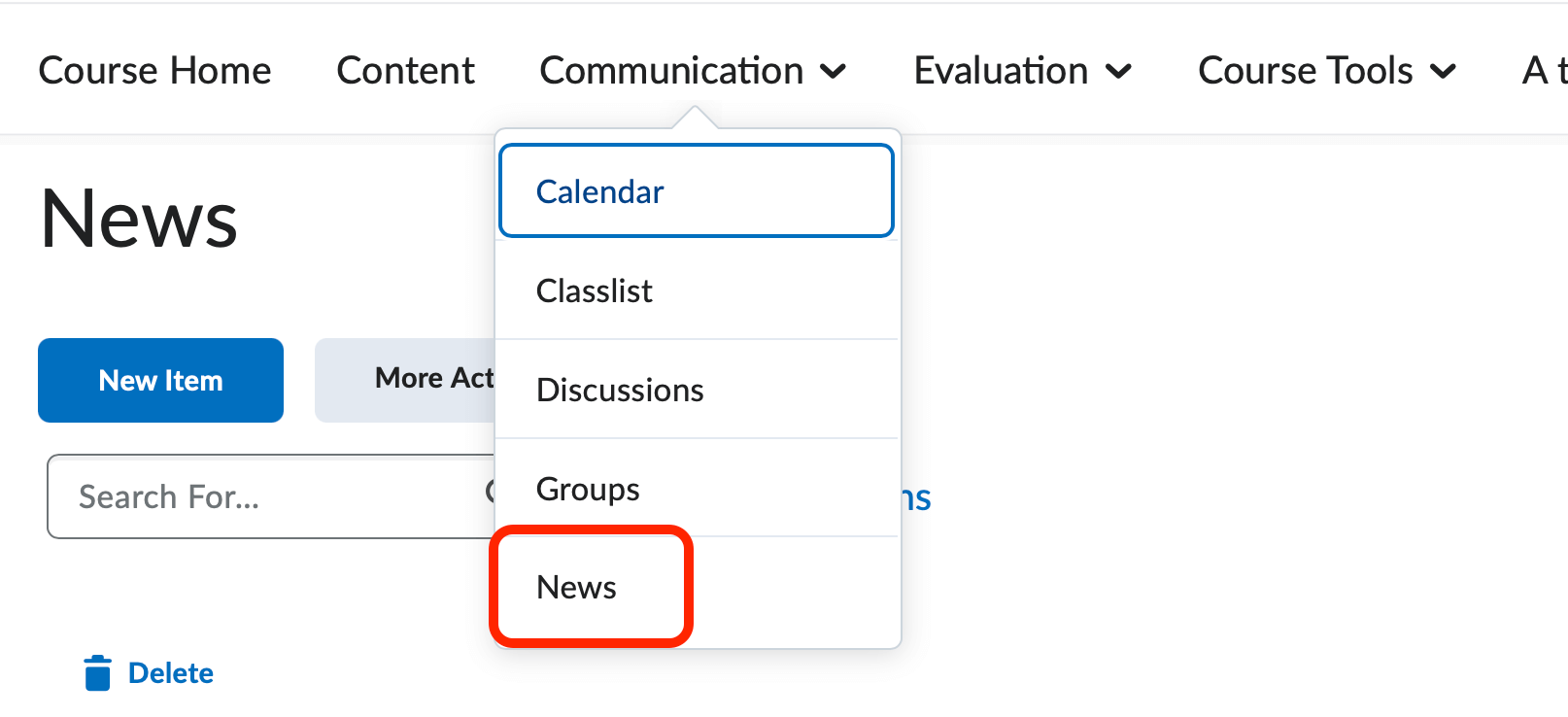
News items can be published immediately, conditionally released to particular students, or scheduled for release in the future. The HTML editor allows you to draw attention to a news item with formatting capabilities. You can also post images inside of your news item. The five most current news items will appear in the News Widget unless you change the display options.
-
Add a News Item
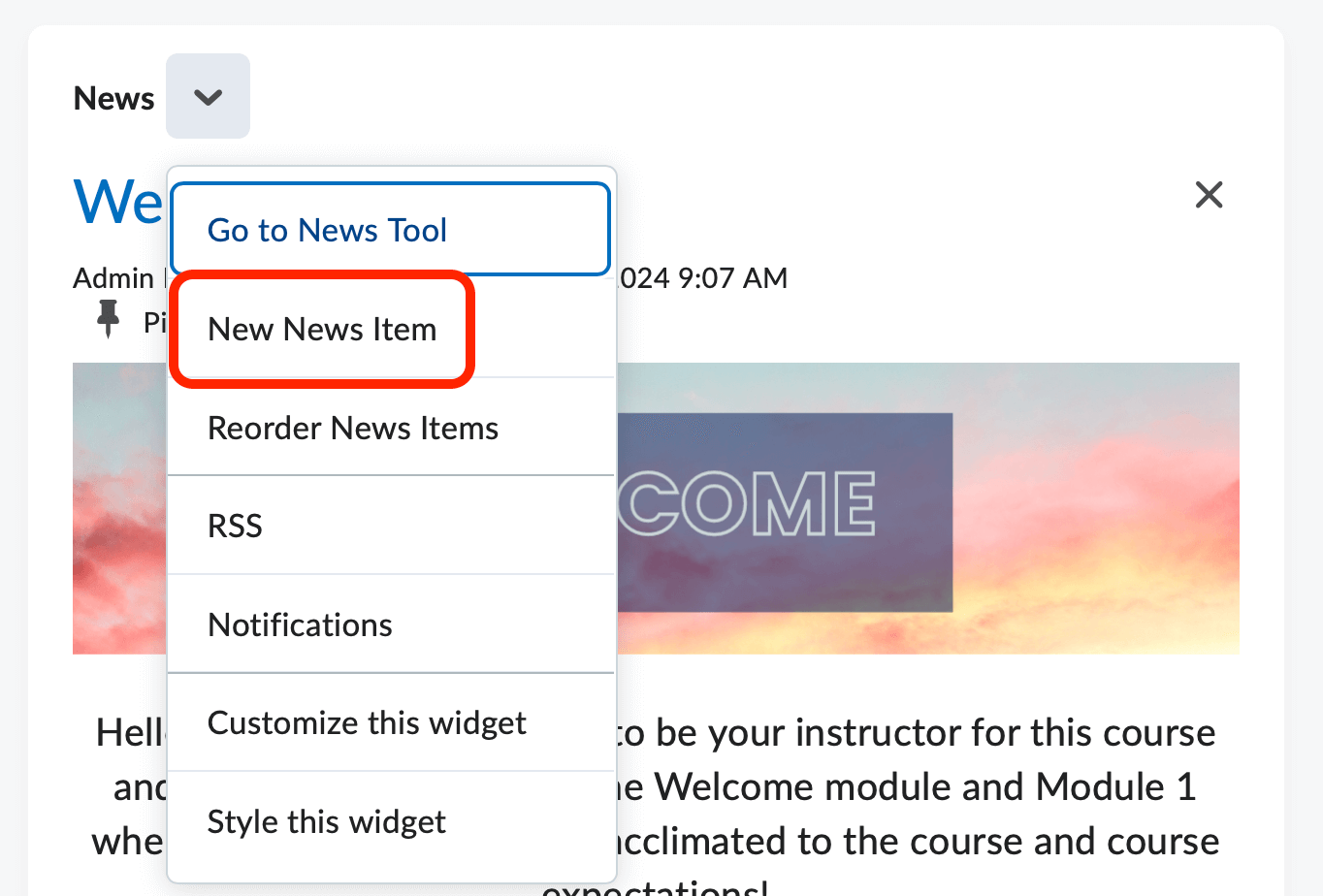
- Click the dropdown arrow to right of the News widget title, select New News Item.
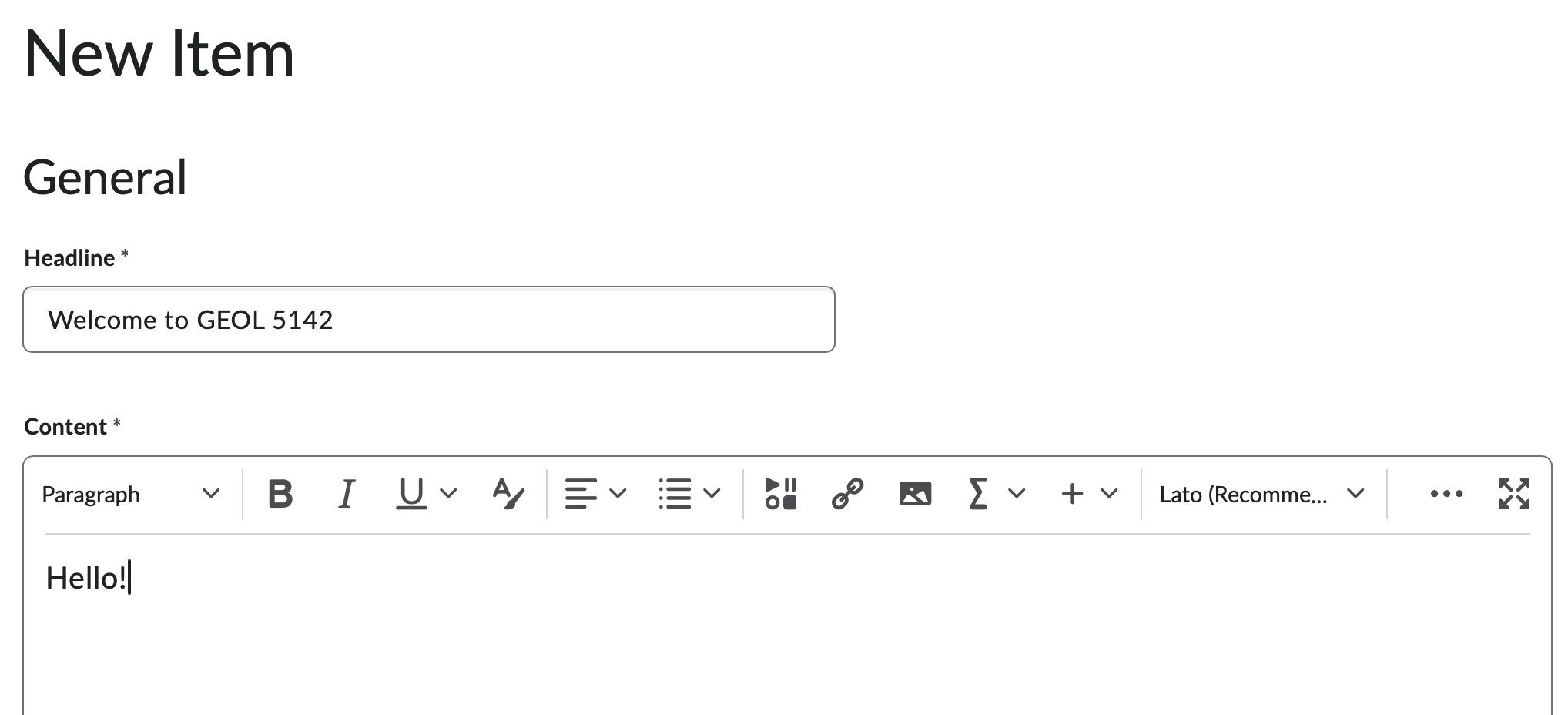
- Add a Headline for your News Post. The heading will appear at the top of your news posting in bold text.
- Add Content to your post. You can use the HTML editor to add backgrounds, images, hyperlinks,
and other customized content.
- Set the Availability by setting a Start and End Date.
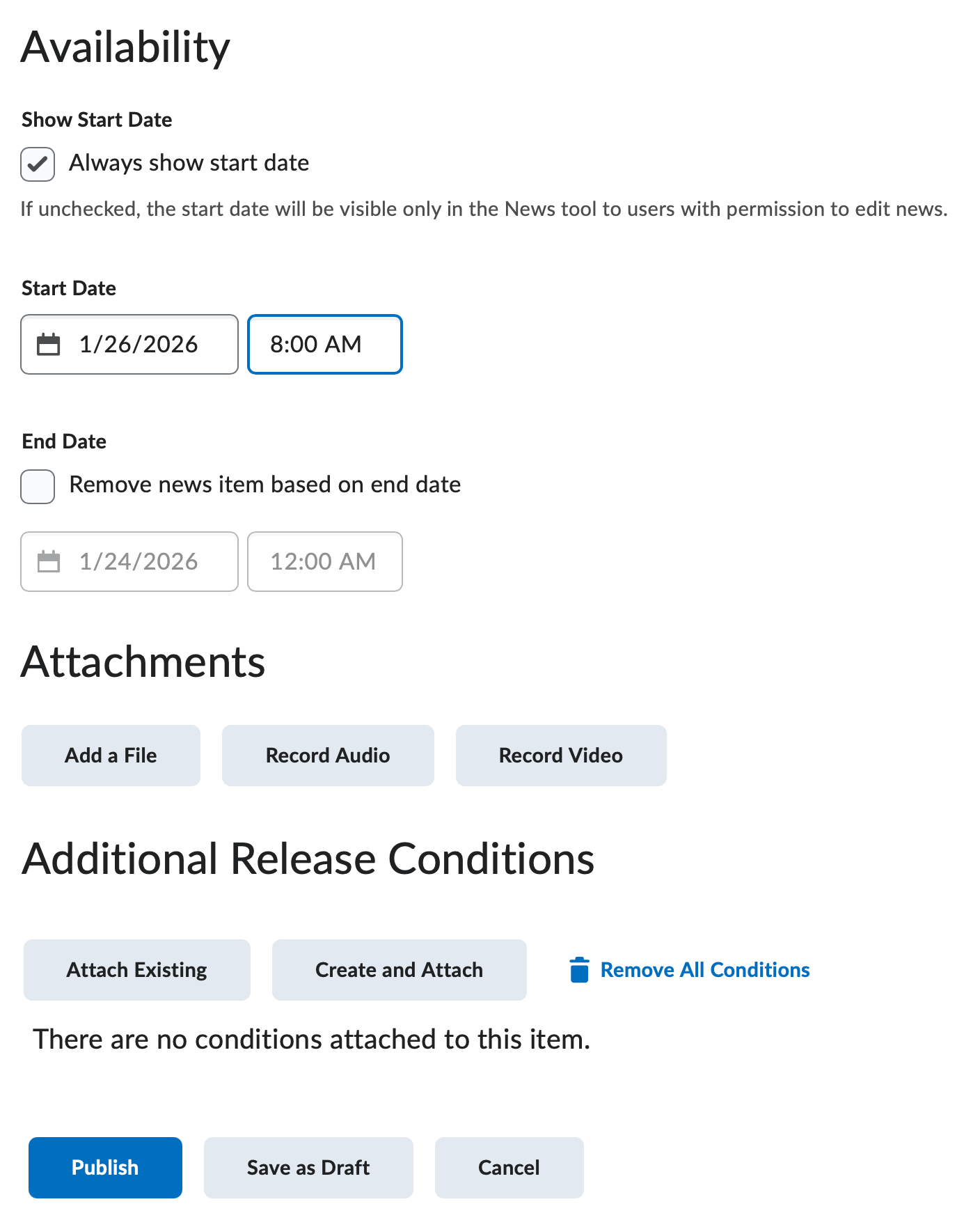
- Assigning a Start Date will allow D2L to suspend publishing the news item until the Start Date has been reached.
- Assigning an End Date will allow D2L to take down a news item from the student view once the End Date has been reached. To enable the End Date, check the Remove new item based on end date checkbox and enter a date and time.
- Add Attachment. You can attach images here to have them show up in the News Post. Click the Add a File button to upload an attachment.
- Add Release Conditions if you would like the News Post to show up after a specific condition is met.
- Click Publish to post immediately, click Save as Draft to publish later. Note that selecting Save as Draft will require you to manually revisit the news item in order to publish it to your students.
- Click the dropdown arrow to right of the News widget title, select New News Item.
-
Edit a News Item
- From the News page, select edit from the context menu of the news item you wish to edit.
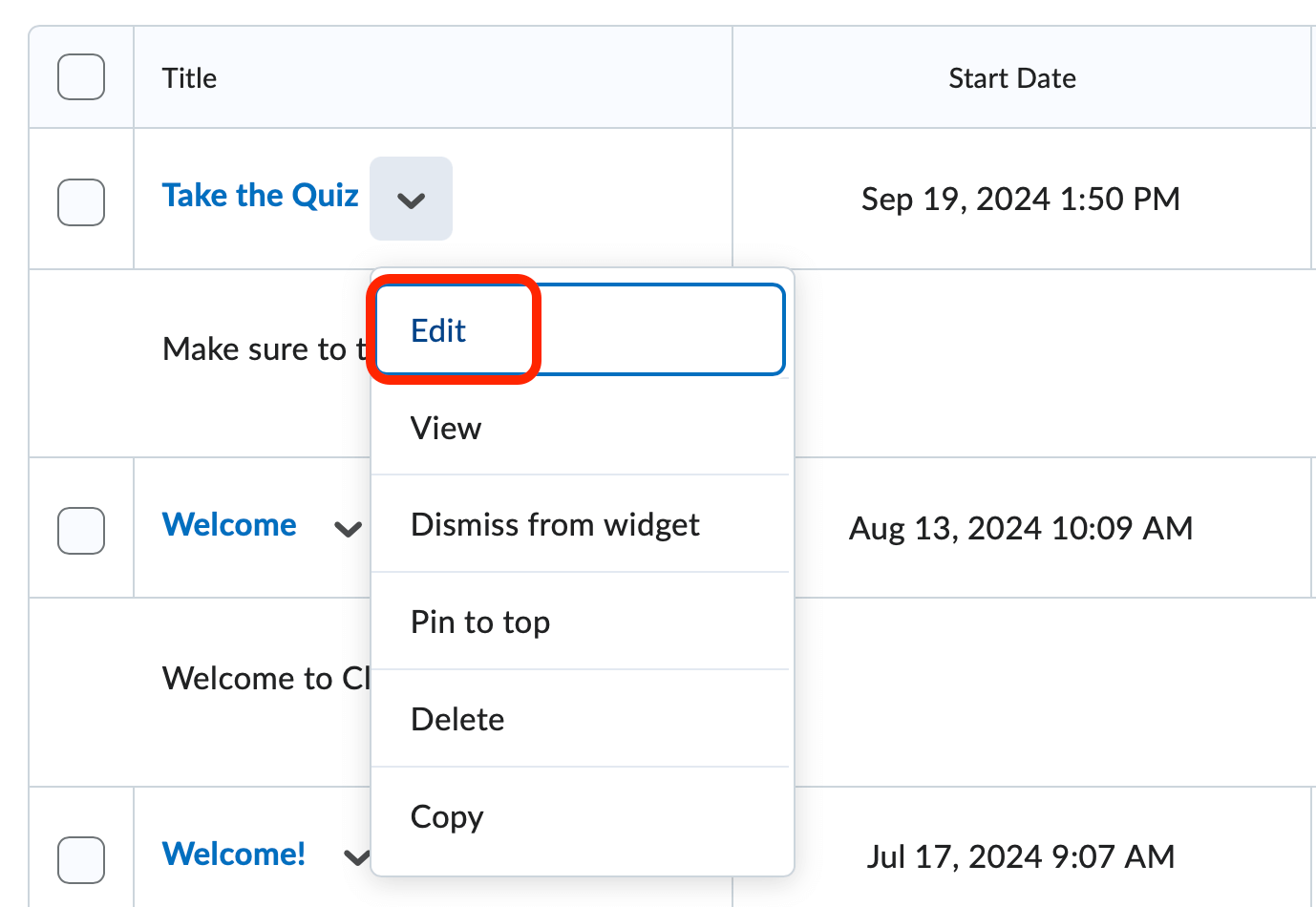
- Make the necessary changes.
- Click Update.
If you make substantial changes to the news items and would like to notify your students, checking the Major Edit - send a notification and restore it for those who dismissed it checkbox will perform two actions: the updated news item will appear at the top of the students' news widgets and they will also receive a notification via the minibar of the update.
- From the News page, select edit from the context menu of the news item you wish to edit.
-
Re-Order News Items
You can re-order your News Items if you would like to bring something back to the front that has fallen below the 5 newest news posts.
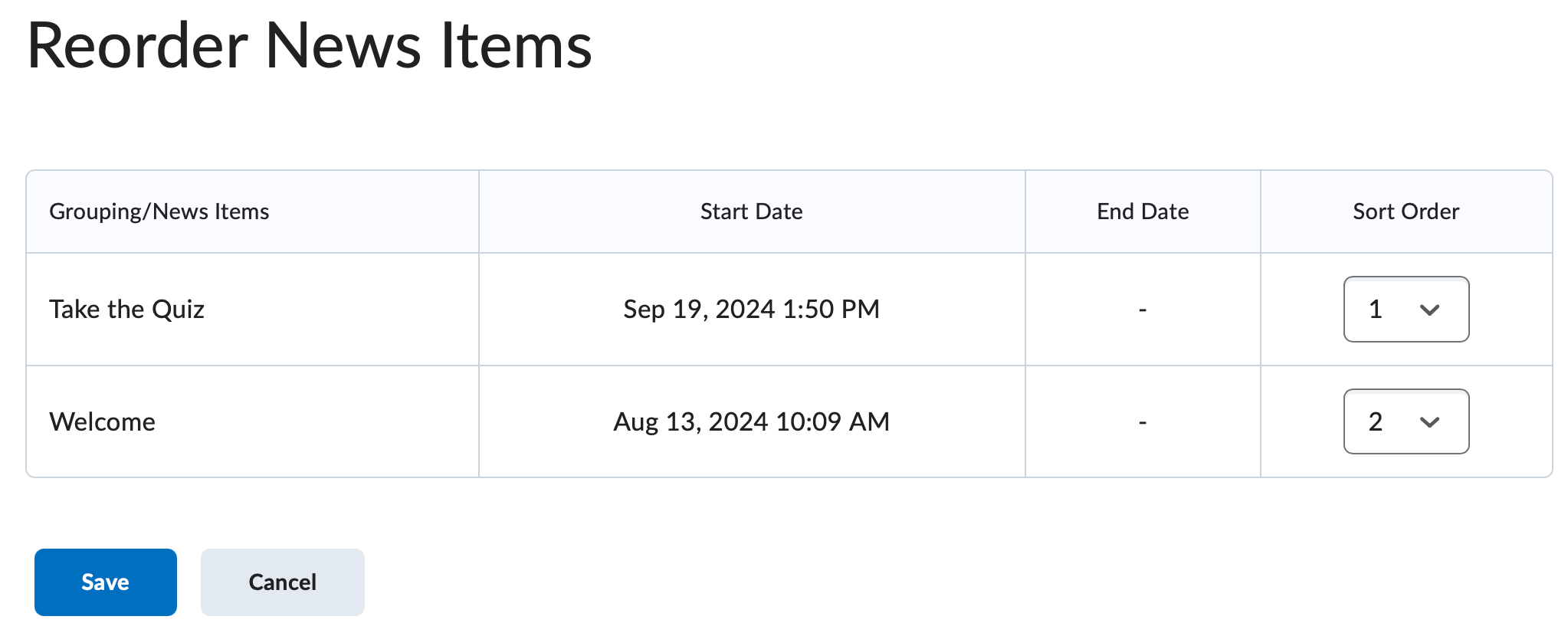
- Select Reorder News Items from the News Widget context menu. Alternately, click the Re-Order option from the More Actions button menu.
- The Sort Order is shown in the far right column.
- The Sort Order will start with 1 and go to the number of posts you have, simply change the sort order through the drop down menus.
-
Dismiss a News Item
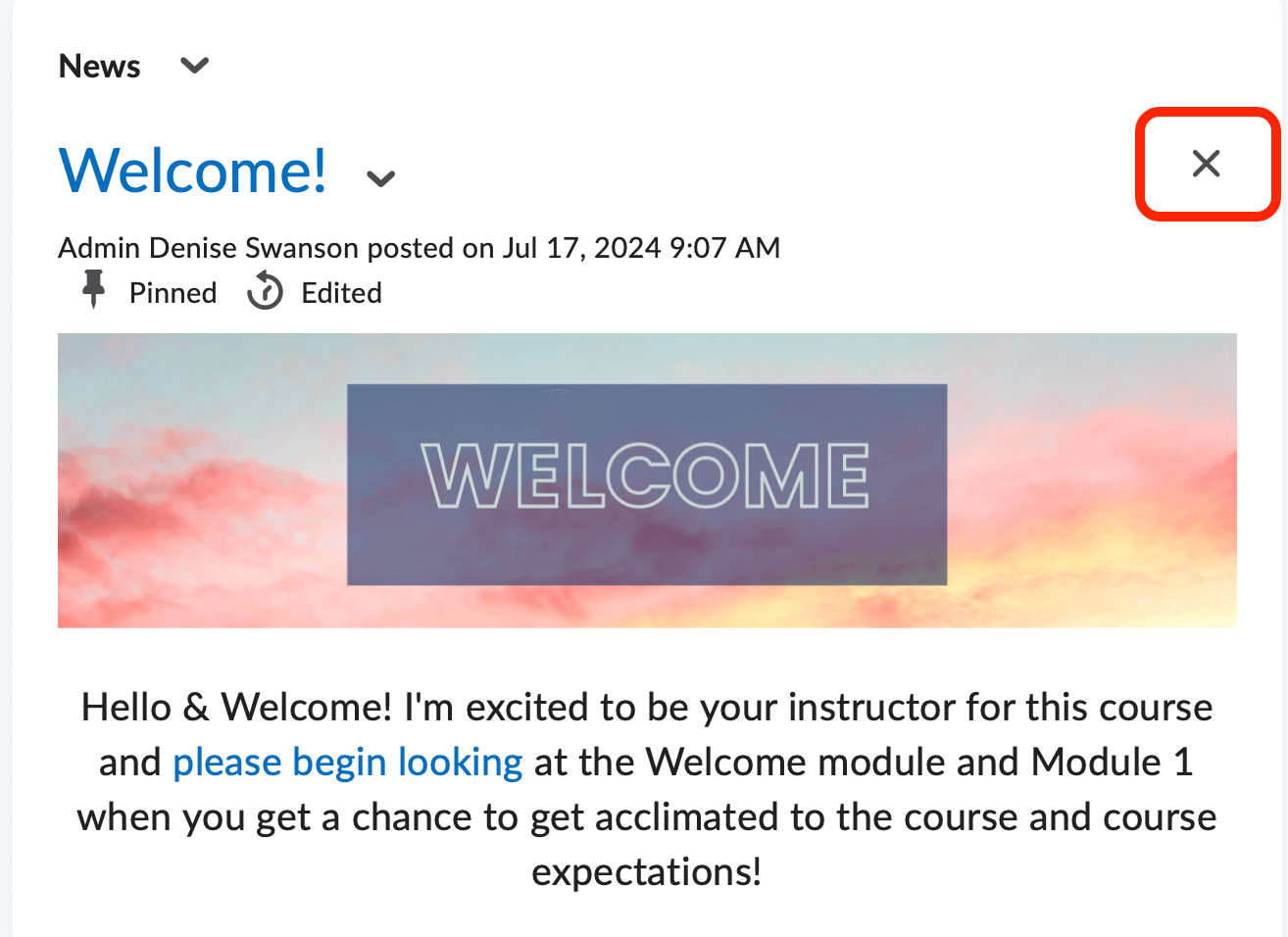
Dismissing a news item suppresses that item from the current user's view. The small (X) in the top right corner of a news items is often mistaken as the delete function. This icon is actually connected to the dismiss action. Only instructors and administrators have access to delete a news item.
- To dismiss a news item from the News widget on the Course homepage, click on the small (X) in the top right-hand corner of the item.
- To dismiss a news item from the News tool, select Go to News Tool from the News widget's context menu. Then, select Dismiss from the context menu of the new item you would like to dismiss.
Restoring a Dismissed News Item
To restore a dismissed news item from the News tool:
- Select Go to News Tool from the News widget's context menu.
- Select Restore from the context menu of the new item you would like to restore.
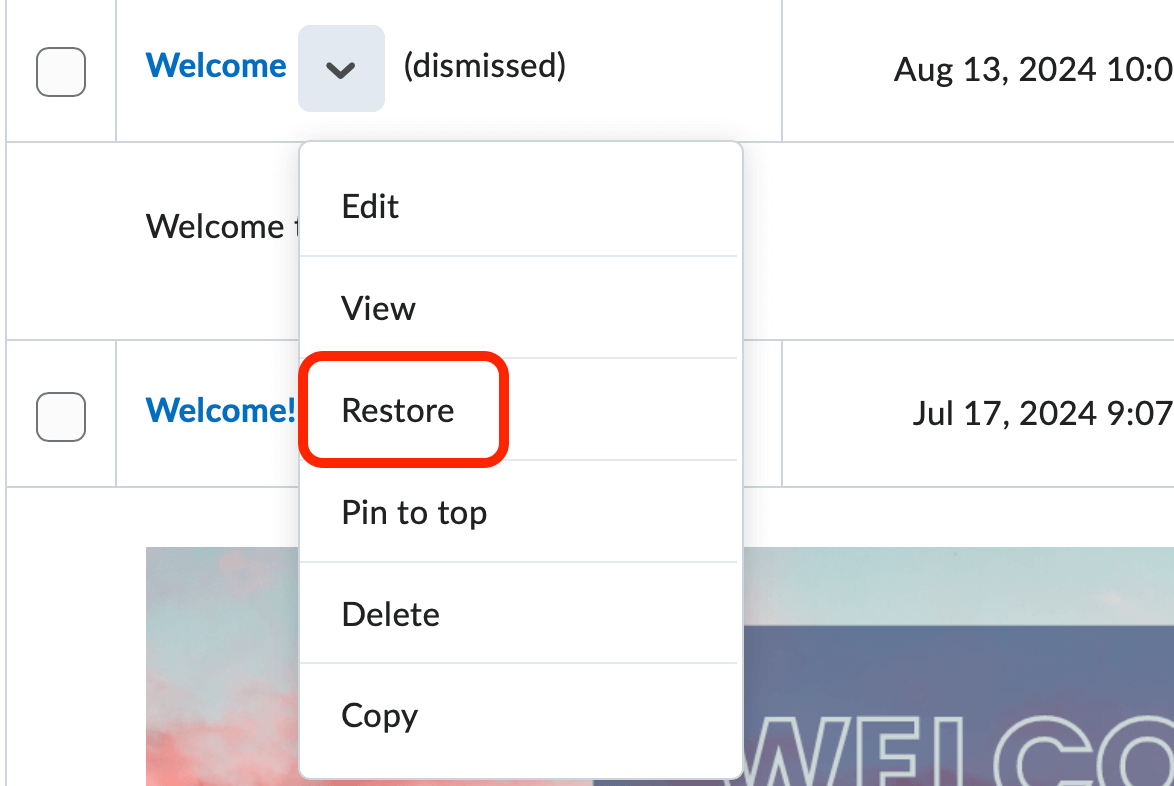
Restoring a dismissed news item will place that news item back in the News widget on the Course homepage.
- To dismiss a news item from the News widget on the Course homepage, click on the small (X) in the top right-hand corner of the item.
-
Delete a News Item
You can also Delete News Items should you choose you no longer want to display that particular post. There are two ways to delete a news item:
Method 1:
- From the News Widget, select Delete after clicking the dropdown next to the news item.
- A pop-up will ask you to confirm the News Item Deletion.
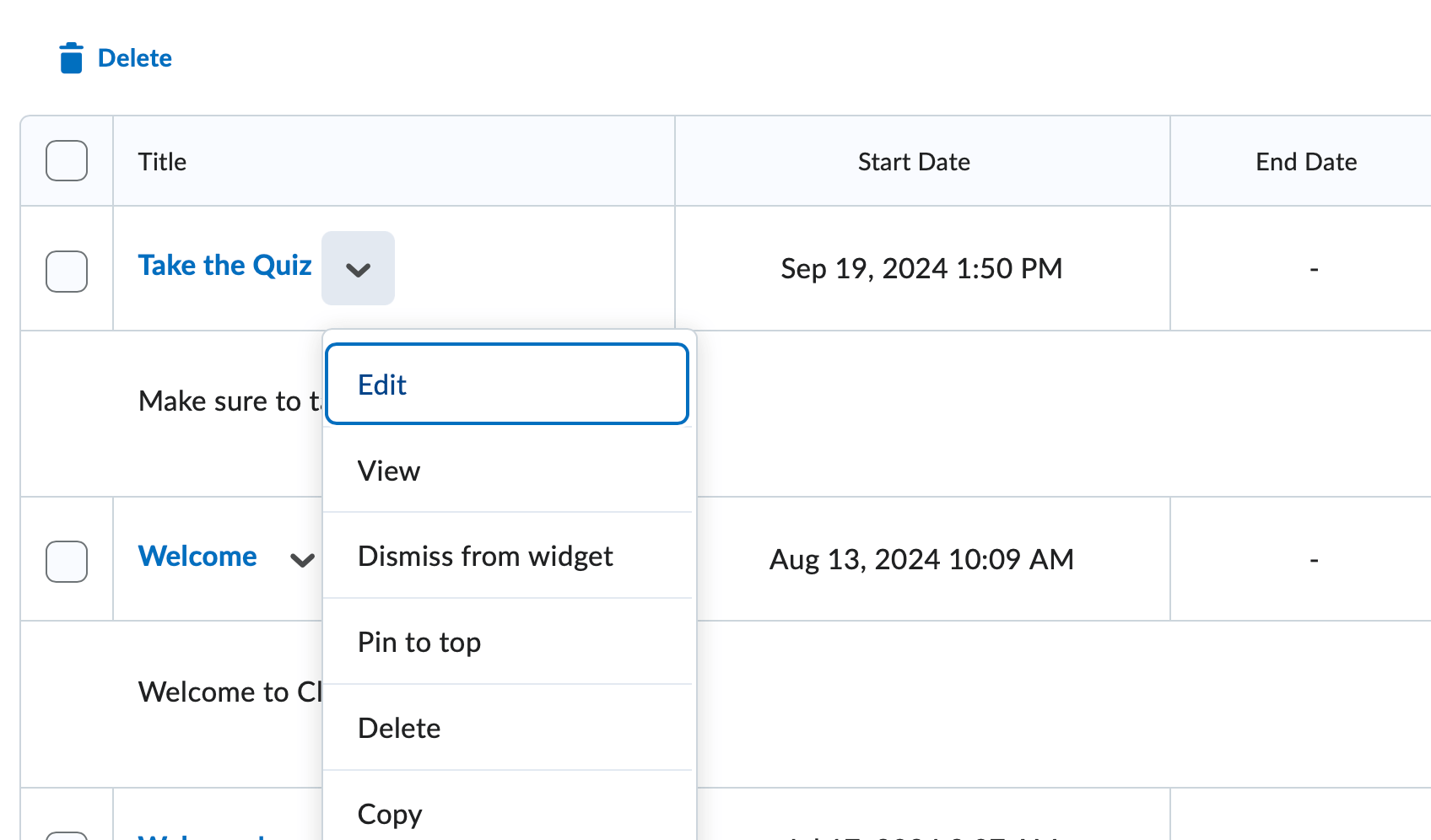
Method 2:
- From within the Edit News widget, select the checkbox next to the item you wish to delete.
- Click the delete button at the top of the list.
- A pop-up will ask you to confirm the News Item Deletion.
-
Pinning a News Item
D2L now allows you to pin News items at the top of your news list.
- From the Course homepage, click the dropdown arrow next to the desired News item.
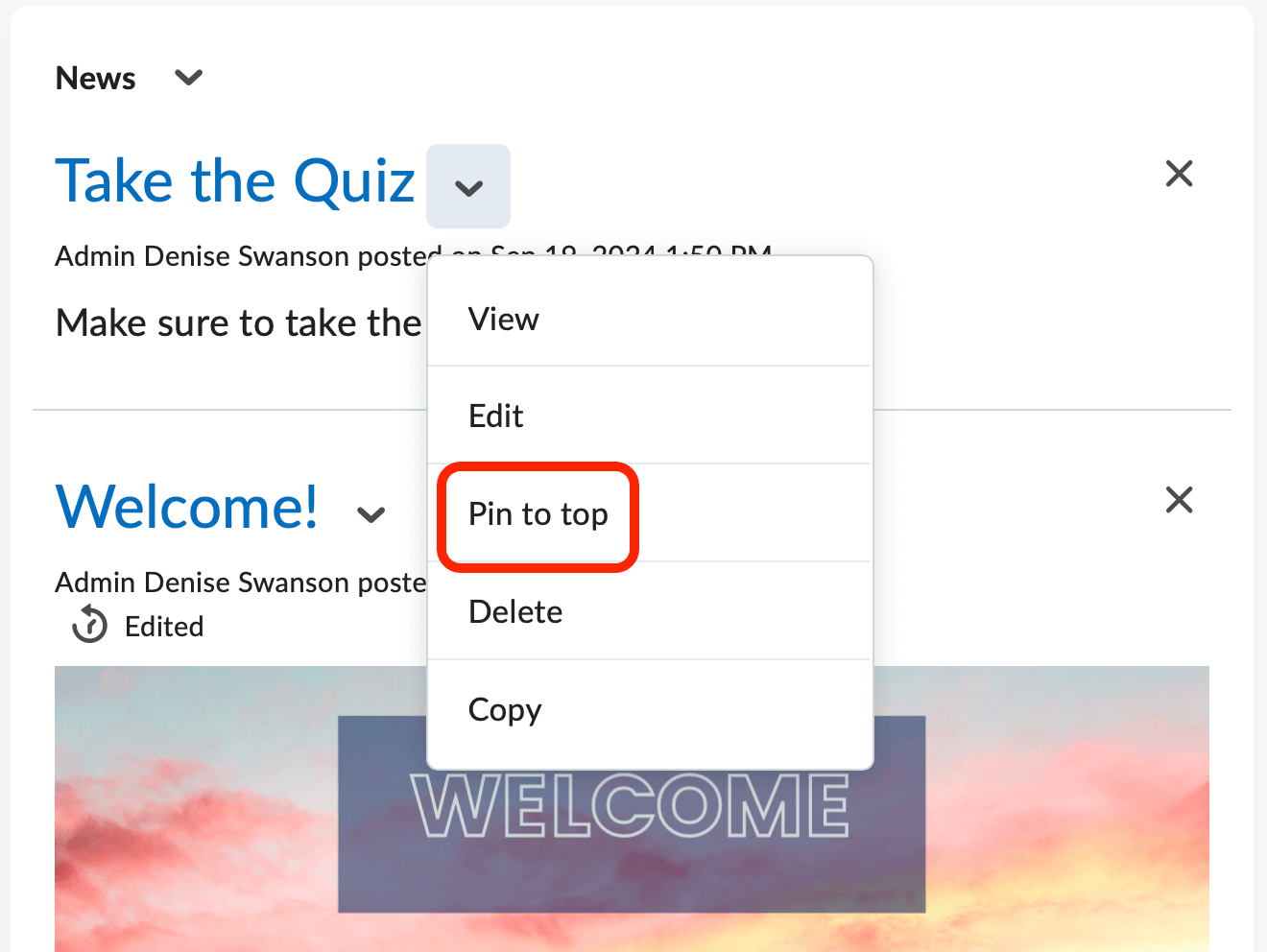
- Select the Pin to Top option.
- Your news item will now be at the top of the list until you Unpin.
- From the Course homepage, click the dropdown arrow next to the desired News item.