Using PubMed to Request Resources through Interlibrary Loan - New Log-in Requirements for Use
PubMed now expects everyone who uses their email feature to be logged in.
To email article requests to Quillenill@etsu.edu for interlibrary loan, you can select the articles you want from your results page
or you can send the articles to the PubMed clipboard and select the email option.
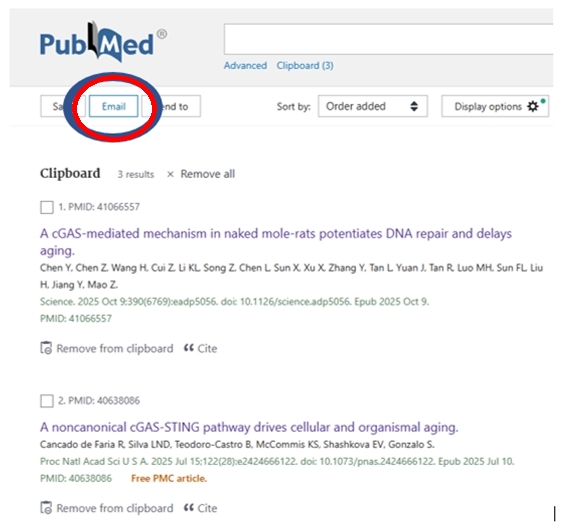
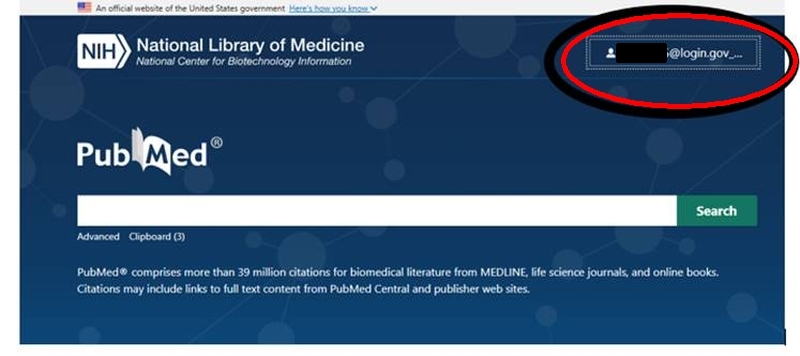
Previously, patrons could go directly to the email feature. Because of recent changes, PubMed now requires users to log in. Users may log in from the PubMed search page:
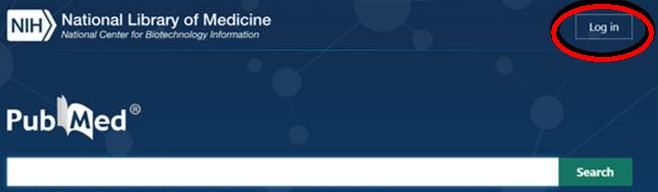
Patrons may also be prompted to log in when trying to email citations through PubMed
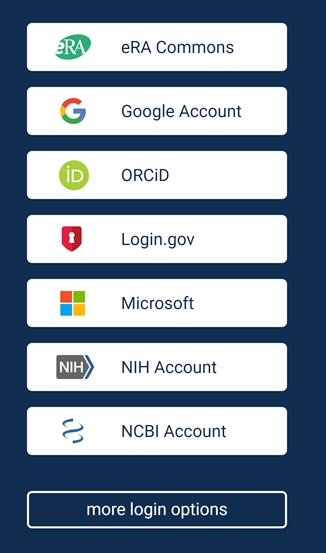
Clicking either of these will take you to a page with a list of options. Users of
PubMed may choose any of these options to log into PubMed.
This tutorial covers two: Login.gov and Microsoft.
The Login.gov Login Option
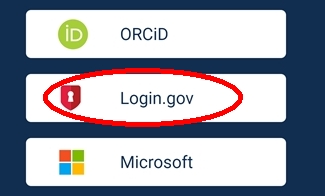
You can click on Login.gov and set up an account using your ETSU email. You do not have to use your ETSU password. You can use a unique password.
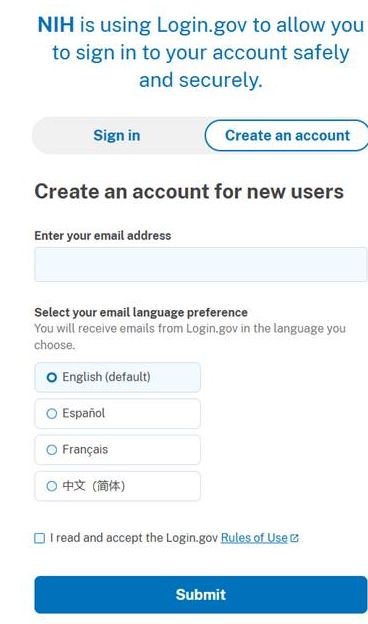
After you have set up an account at Login.gov, you can click on it to have a secure PubMed login.
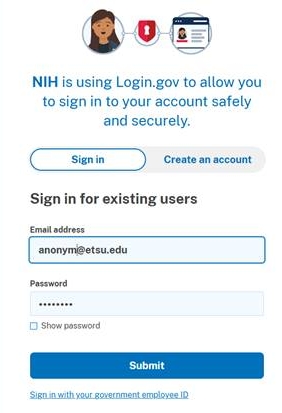
Use this sign in page for Login.gov after you have set up an account using your ETSU email.
After you sign in, PubMed may automatically route you to the My NCBI Dashboard.
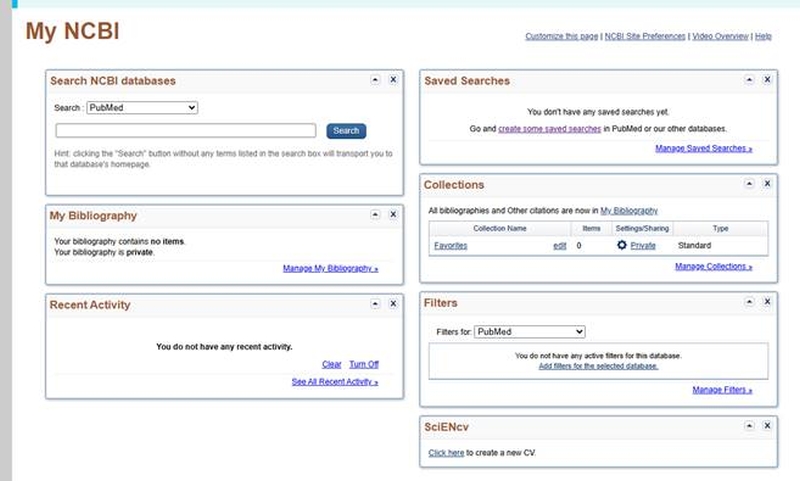
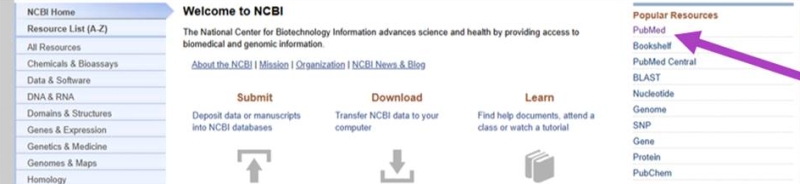
To get to PubMed from this dashboard, go to the upper left hand corner of the screen and click on the National Library of Medicine heading.

Clicking on this link will take you to a page with a list of NLM resources to choose from. To get to the PubMed search page, click on the PubMed link.
After you sign in to PubMed through Login.gov, you will notice a Login.gov ID in the upper right corner of the PubMed search page.
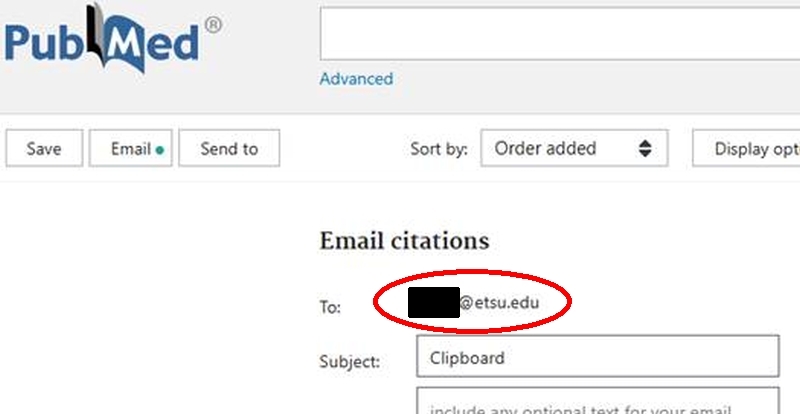
If you choose to use the PubMed email feature, you will see that your ETSU email is defaulted into the form.
This will happen if you used your ETSU email to set up the Login.gov account.
Logging into PubMed through a third party or unaffiliated email or system
- If you wanted to use another site, such as Google or Microsoft to log in to PubMed, you can do so.
- Doing this will mean that your Google or Microsoft email will be the default email that shows up in your PubMed account.
- However, this tutorial will cover how you can change the default email in PubMed to your ETSU email, even if you are logged into a third party account.
- If you would like to use this method instead of Login.gov, please see the following for additional information
The Microsoft Login Option
In the following example, Microsoft will be the third party used to sign in to PubMed, but all of the possible choices are listed below. Start by selecting which account you would like to use.
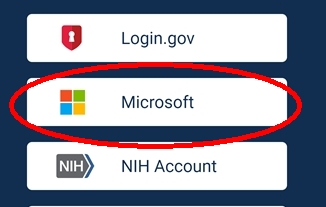
After clicking on Microsoft or any other third party you choose, sign in with the information you have for that account—you would not use your ETSU email for this method unless the account is linked to your ETSU email.
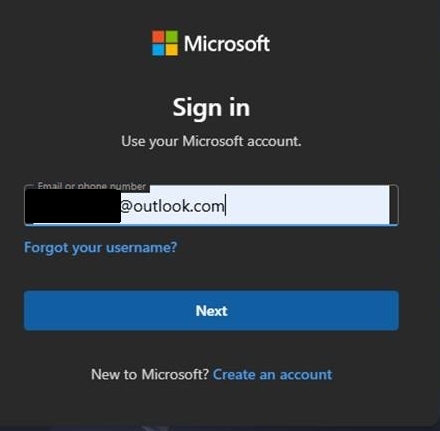
After you have logged in using the third party system or email, you will see the username for that email in PubMed.
In the example below, an unaffiliated Microsoft Outlook email is now the username, because we logged in with a Microsoft Outlook email.
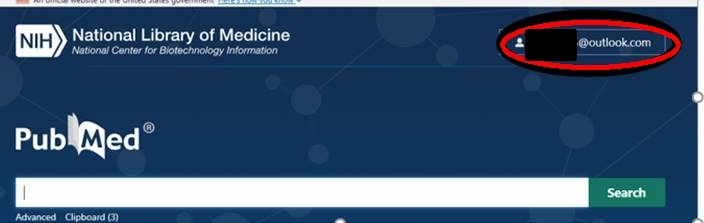
Because this is a third party log in, you will need to manually change your NCBI account to use your ETSU email. You can do this by clicking on the username and choosing the ‘Account settings’ link:
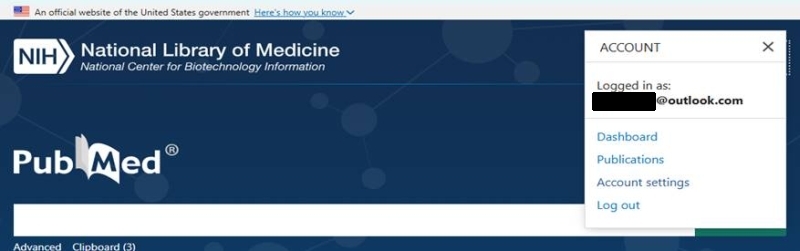
Going into the ‘Account settings’ link will provide you with a page where you can edit your email to any account you wish to use, including your ETSU email account.
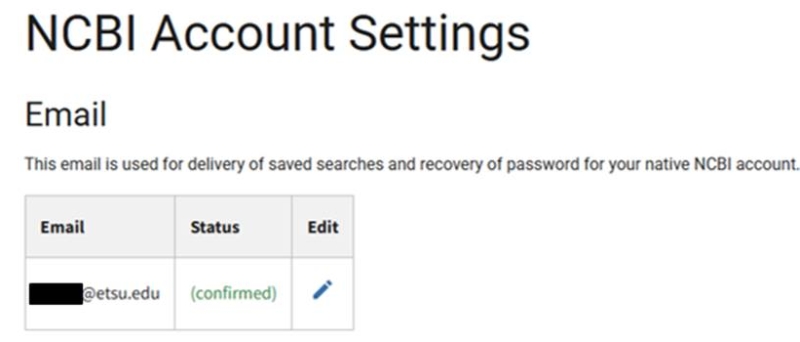
You will receive a prompt to confirm the change. This prompt will be sent to the email you have put into the edit feature (see above). After you confirm, your PubMed account will default to this email.
If you have any questions about this process, please contact Kelly Loyd at loydk@etsu.edu